Anyone's parts, imported once.
A pack is a folder of parts on one skeleton — heads, hair, bodies, headgear and the rest — from whoever made it, in whatever format they shipped. Rigkin imports it into its own library, and every project reads its parts from there.
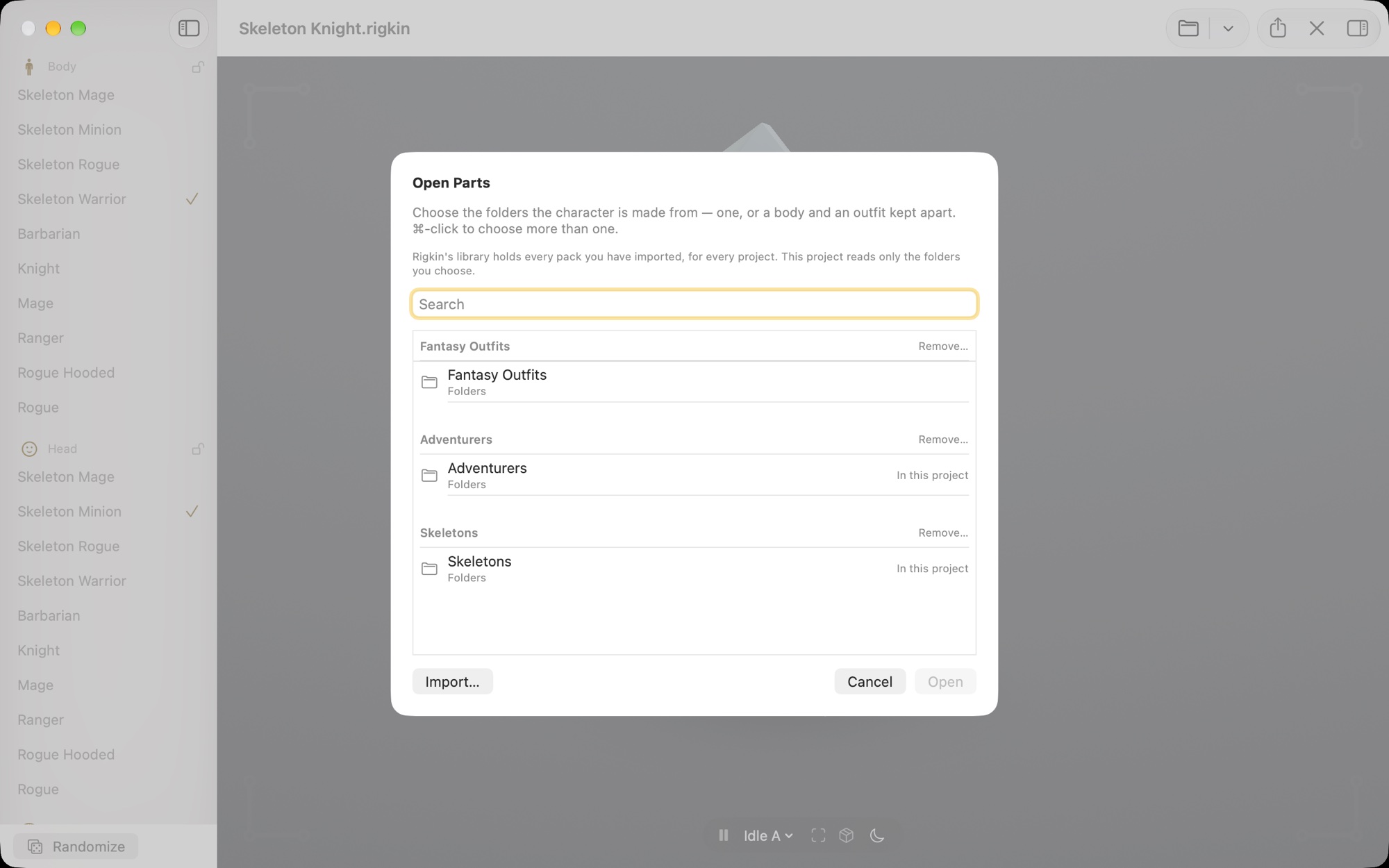
A single pack on its own is the normal case.
Every file in a pack that has meshes becomes a part, its slot worked out from its name. A file that holds a whole character — body, head, hat and cape as separate meshes — is split into its pieces, so one character's helmet can go on another.
- Parts list their joints in any order, leave out the ones they don't use, and add bones of their own — a cape's, a ponytail's.
- A part made for another body of the same skeleton is moved onto the pack's body, each vertex carried by its joints.
- A file of clips is the pack's animation, even when it carries a stand-in figure to preview them on.
- A part that can't belong is set aside and listed with the reason, never drawn with its limbs in the wrong places.
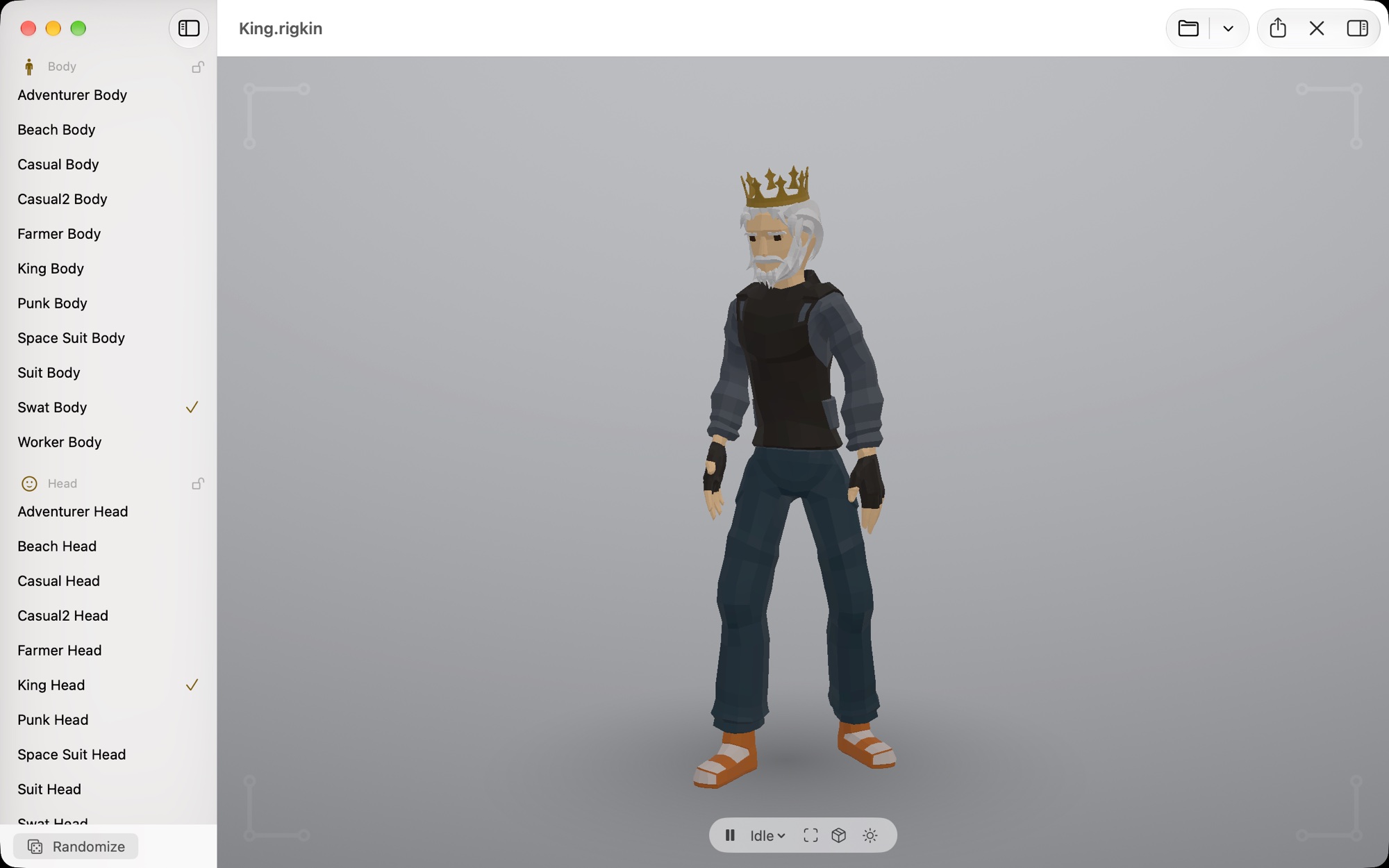
Projects that never lose their parts.
Packs are imported into Rigkin's own library once, and projects name them there — never a folder on a drive that could be moved, renamed or unplugged. A Unity package is read straight from its .unitypackage, without Unity: its parts, ready-made characters, colors and clips are kept, its scripts and scenes are not.
- Search the library, grouped by the import each folder came from.
- Remove… frees a pack's space, keeping any file another pack brought too.
- Move the library to another folder or drive in Settings ▸ Library; Rigkin waits for a drive that's unplugged.
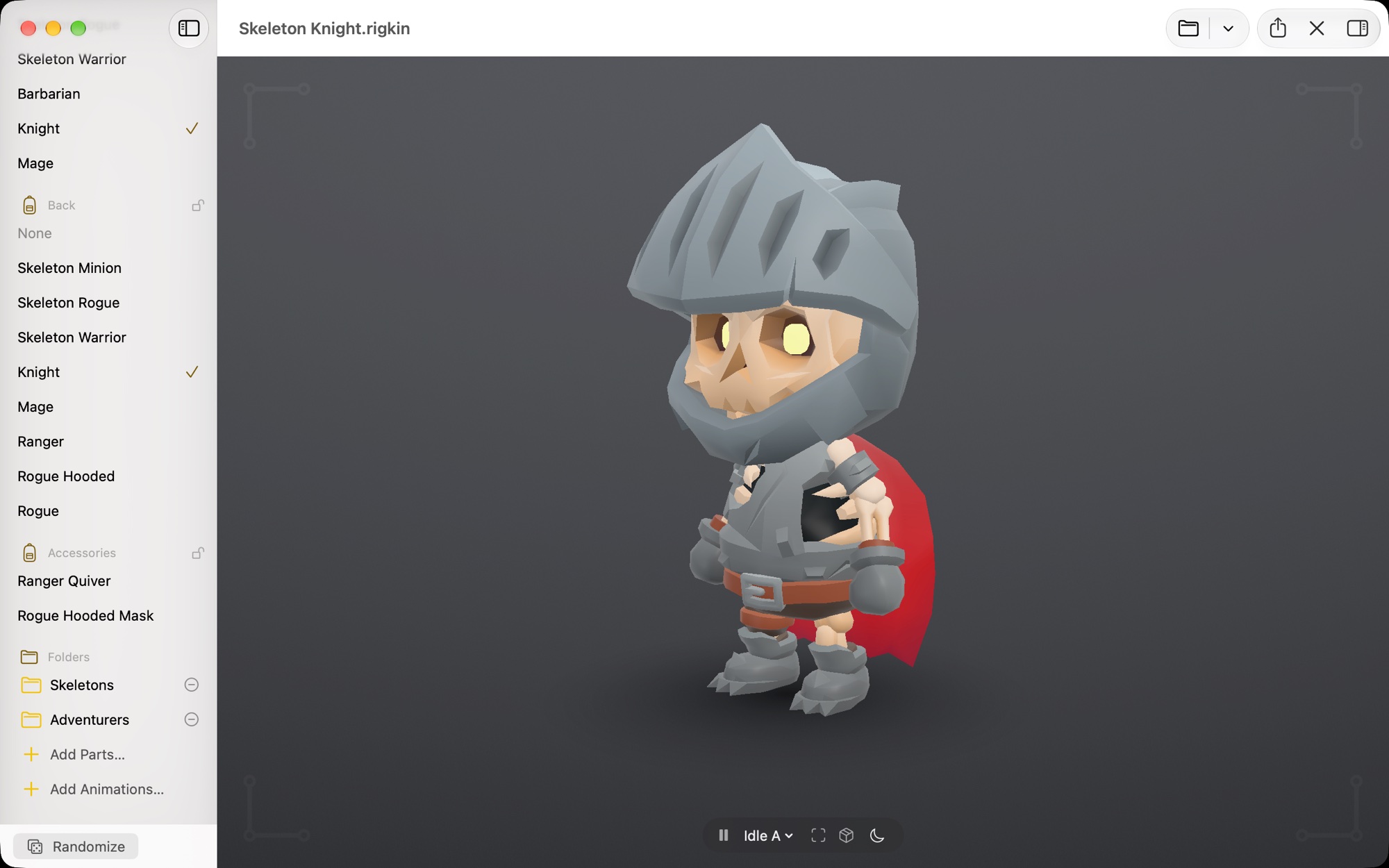
- A project keeps a copy of the character it wears, so on a Mac without its packs it still shows — and names the pack to import.
Read the way the tools you know read them.
No converter to run first, no Blender in the middle. Rigkin reads each format natively, and writes every one it reads.
Native to the Mac, read with its skeleton, skin and clips, and written as UsdSkel every engine that reads USD understands.
The open interchange format, with Draco and meshopt compression and KTX2 textures, read and written.
What most character packs still ship, read with Autodesk's own FBX SDK — embedded textures too — and written as FBX 7.4.
A pack's Unity download is read straight from its .unitypackage — Unity doesn't need to be installed. Packs are imported into Rigkin's own library, and your originals are never changed.
However your pack arrived.
A folder or a package
Choose a folder of parts or a .unitypackage; it's imported, then offered to open.
Double-click a package
A Unity package opened from the Finder imports into the library and shows it.
Onto a window
A folder dragged onto a window is imported first, then opened as the project's pack.
Told, not refused
Those downloads hold their engine's own files. Rigkin says so, and which download to import instead.
Free on the Mac App Store.
Everything you build by hand is free, in every format. Pro makes characters by the dozen.